

Picture this: your laptop gets stolen on the way home from the library. Every essay, every project file, every scanned ID document you had saved is now sitting on someone else’s screen. That single moment is the difference between a bad week and a genuine crisis—and the only thing standing between the two is whether your files were locked in a way a stranger can’t open. That’s the entire point of file encryption, and it’s a lot less complicated than most students assume.
This guide breaks down what the process actually is, how it works, why data protection and data privacy depend on it, and how you can start using it this week—no computer science degree required.
What Is File Encryption?
At its core, file encryption takes readable information (called plaintext) and scrambles it into unreadable gibberish (called ciphertext) using a mathematical key. Without that key, the file is just noise. With it, the file opens exactly as it did before.
Think of it like a locker at a train station. Anyone can see the locker. Nobody can see what’s inside unless they have the matching key. This process does the same thing for a Word document, a folder of photos, or an entire hard drive—it doesn’t hide that the file exists; it hides what’s inside it, which is exactly what real data privacy requires.
There are two broad families of encryption that do this job differently: symmetric encryption and asymmetric encryption. Understanding the difference matters more than most students expect, because it changes how secure—and how convenient—your setup ends up being.
Why Does This Matter More in 2026 Than It Did a Few Years Ago?
Data protection stopped being an IT-department problem a while ago. Students now carry financial aid records, internship contracts, research data, and login credentials for a dozen platforms on a single laptop or phone.
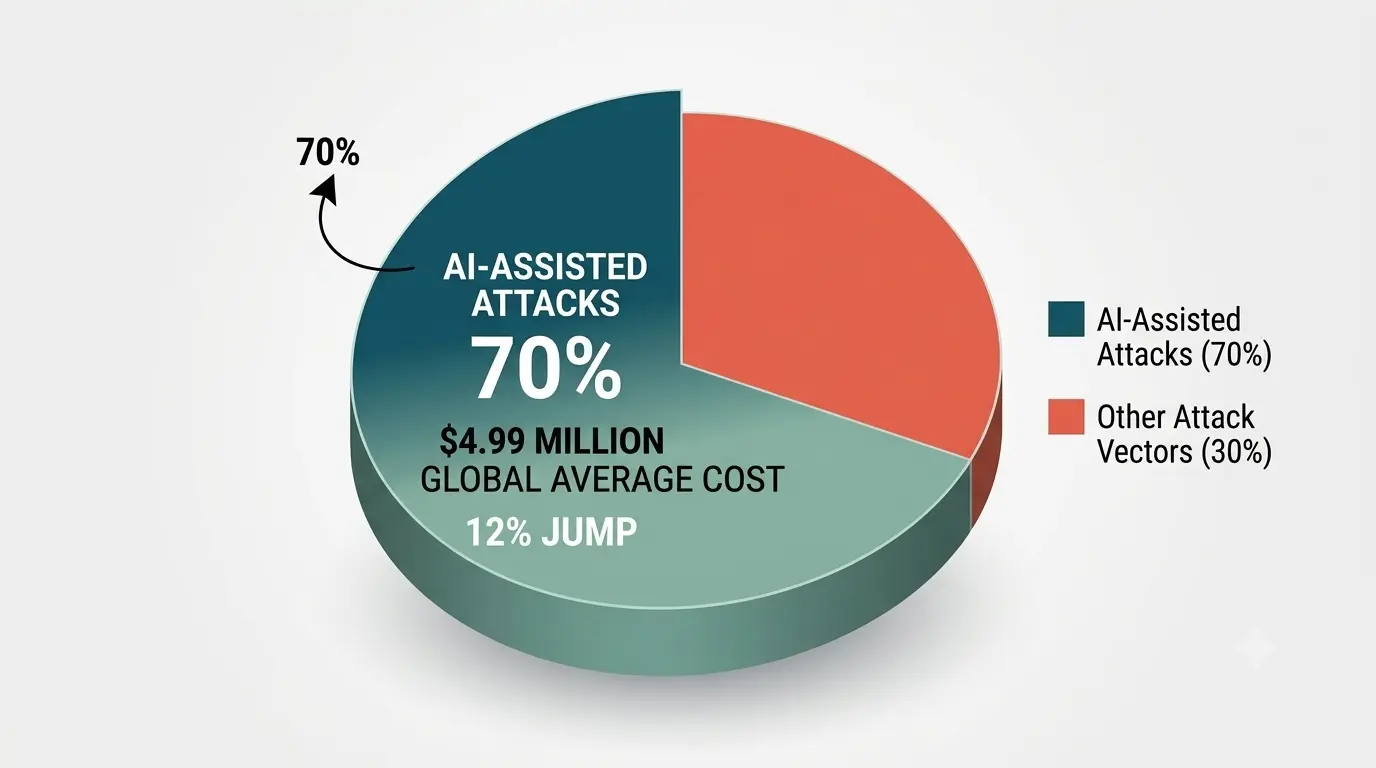
According to IBM’s 2026 Cost of a Data Breach Report, the global average cost of a data breach hit $4.99 million this year—a 12% jump driven largely by AI-assisted attacks that guess weak passwords and exploit unprotected files far faster than a human attacker ever could.
You don’t need to be a Fortune 500 company to be a target. Campus networks, shared dorm Wi-Fi, public library computers, and cloud storage accounts are all soft targets precisely because most people treat data privacy as someone else’s job. Strong data protection habits put that control back in your hands.
It’s the difference between a lost USB drive being an inconvenience and it being an identity-theft event—and it’s also, increasingly, a matter of basic academic hygiene, since a lost thesis draft or unpublished research file can cost months of work.
Regulators are paying attention too. Universities across the US and Europe now face growing pressure to show that student and research data is genuinely protected, not just backed up. That pressure trickles down to individual habits—the more comfortable you are handling this now, the less scrambling you’ll do later in a job that expects it by default.
Symmetric Encryption vs. Asymmetric Encryption
This is the part that trips people up, so let’s make it concrete.
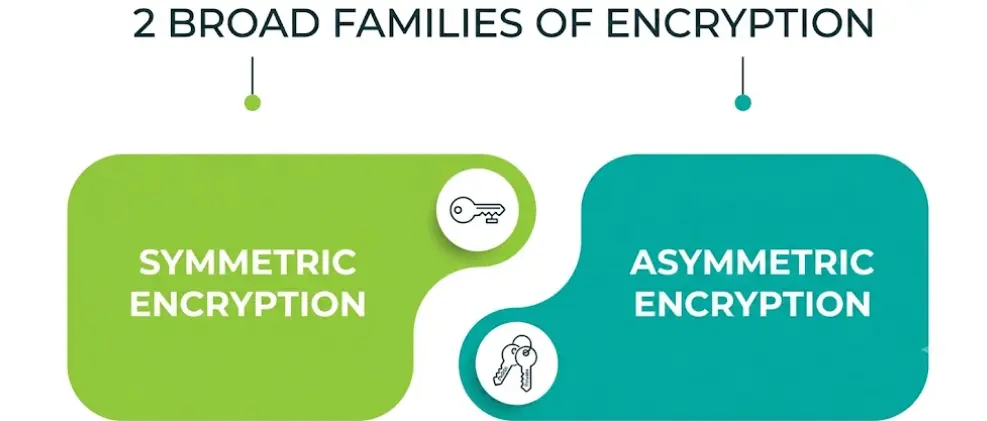
- Symmetric encryption uses one single key to both lock and unlock the file. It’s fast, efficient, and ideal for encrypting large files on your own device—think zipping a folder with a password. The catch: if you need to send that file to someone else, you also have to send them the key somehow, and that handoff is the weak point.
- Asymmetric encryption uses two mathematically linked keys—a public key anyone can see and a private key only you hold. Someone locks a file using your public key, but only your private key can open it. This solves the key-sharing problem that plain symmetric encryption has, though the asymmetric approach is slower and more computationally demanding, which is why it’s usually reserved for smaller, sensitive exchanges rather than bulk file storage.
|
Feature |
Symmetric Encryption |
Asymmetric Encryption |
|
Number of keys used |
One shared key |
Two linked keys (public + private) |
|
Speed |
Very fast |
Slower, more processing needed |
|
Best use case |
Encrypting files on your own device |
Sending files securely to others |
|
Key-sharing risk |
Higher—key must be transmitted |
Lower—private key never leaves your device |
|
Common examples |
AES-256 |
RSA, ECC |
Most real-world tools quietly combine both approaches: an app might use the asymmetric method just to exchange a session key, then switch over for the actual file because symmetric processing is faster. You don’t need to manage this handoff yourself—most reputable encryption software, including AES-256-based tools built for everyday cloud storage, handles it automatically in the background.
Key Management: The Step Everyone Skips
Here’s an uncomfortable truth: locking a file is the easy part. Key management—deciding where your keys live, who can access them, and what happens if you lose one—is where most people quietly fail.
If you protect a file and store the password in a text file sitting right next to it, you haven’t actually achieved much. Good key management means:
- Never store your encryption key or password in the same location as the protected file itself.
- Using a dedicated password manager rather than memory or sticky notes.
- Keeping a secure, offline backup of critical keys—if you lose one with no backup, the file is gone permanently, not just locked.
- Rotating keys periodically for anything long-term, like a research archive you’ll keep for years.
A weak setup is the single most common reason strong algorithms fail in practice. The math doesn’t get broken—the key just gets left somewhere careless. Good key management isn’t glamorous, but it’s the difference between security that actually holds up and security that’s just theater.
Password Protection: Your First Line of Defense
Password protection and encryption aren’t the same thing, but they work together closely. A password is what proves you’re allowed to unlock the key; the underlying process is what actually scrambles the data. A strong algorithm paired with a weak, guessable password is still a weak setup overall—the algorithm never gets tested if the front door is unlocked.
For solid password protection on any protected file:
- Use a passphrase of at least 14–16 characters rather than a short complex password—length beats complexity for resisting brute-force attempts.
- Never reuse a password across your protected files and your everyday logins.
- Turn on multi-factor authentication anywhere it’s offered, especially for cloud accounts holding sensitive backups.
- Avoid anything tied to public information—your birthday, your school, your pet’s name.
Good password protection is the lock; the underlying algorithm is the vault door behind it. You genuinely need both working together, and neither one compensates for the other being weak.
How Can Students Start Using File Encryption Today?
You don’t need to build anything from scratch. Here’s a practical path that covers most of what a student actually needs:
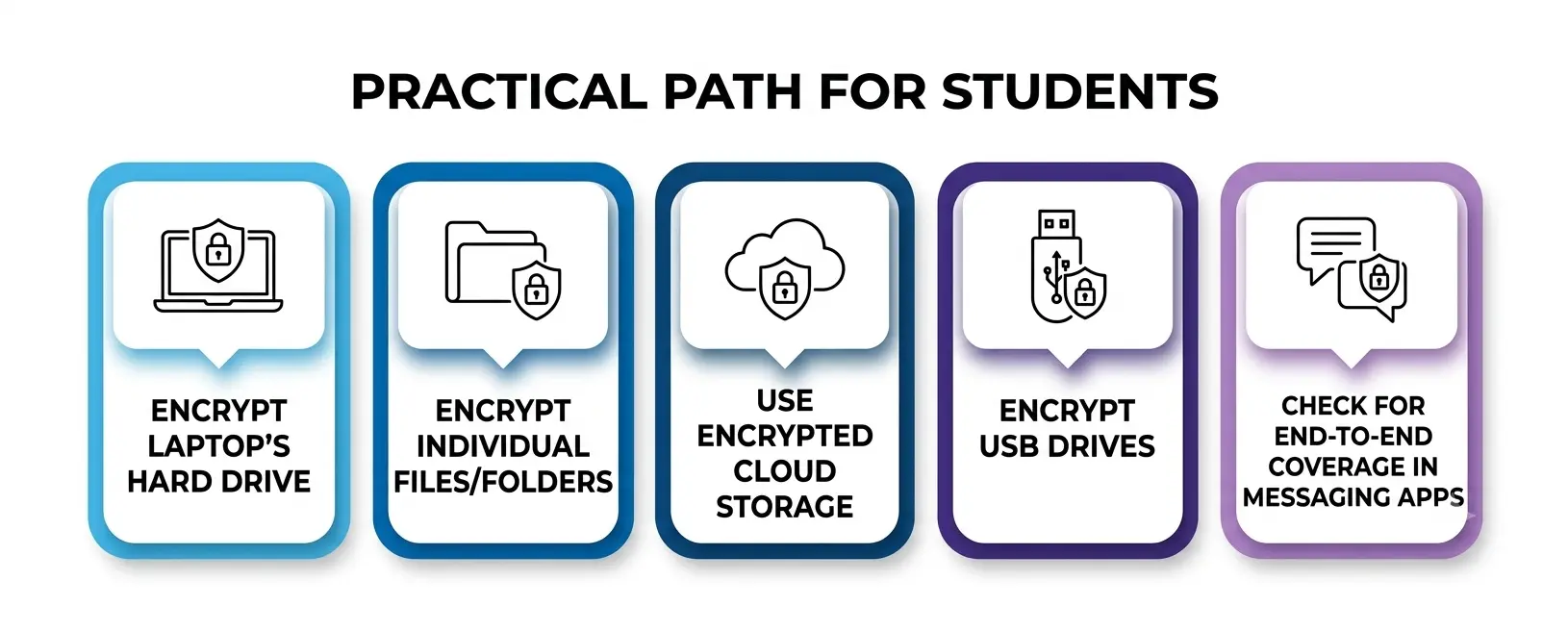
- Encrypt your laptop’s hard drive. Windows has BitLocker built in (Pro editions); Mac has FileVault. Both take a few minutes to switch on and protect everything on the disk automatically, which is the single highest-value step for overall data protection.
- Encrypt individual sensitive files or folders, not just the whole drive—useful for anything you share, upload, or carry on a USB stick. Built-in options exist on both Windows and macOS for locking individual files without installing anything extra.
- Use encrypted cloud storage for backups instead of trusting a plain folder sync. Look for zero-knowledge providers, meaning even the company hosting your files can’t read them—a meaningful upgrade for your everyday privacy specifically.
- Encrypt USB drives before carrying coursework, thesis data, or ID scans between campus and home.
- Check for end-to-end coverage in messaging apps you use to send sensitive documents to classmates or professors—not all of them apply it by default, and this is where a lot of accidental privacy failures happen.
None of these steps require technical expertise. Most take under ten minutes the first time and become automatic after that, which is really the whole appeal—good security shouldn’t require you to think about it every single day.
Choosing the Right Tool for the Job
Not every situation calls for the same setup. Something perfect for locking a single sensitive PDF before emailing it isn’t necessarily the right choice for protecting an entire laptop, and vice versa. A few things worth checking before you commit to a specific piece of software:
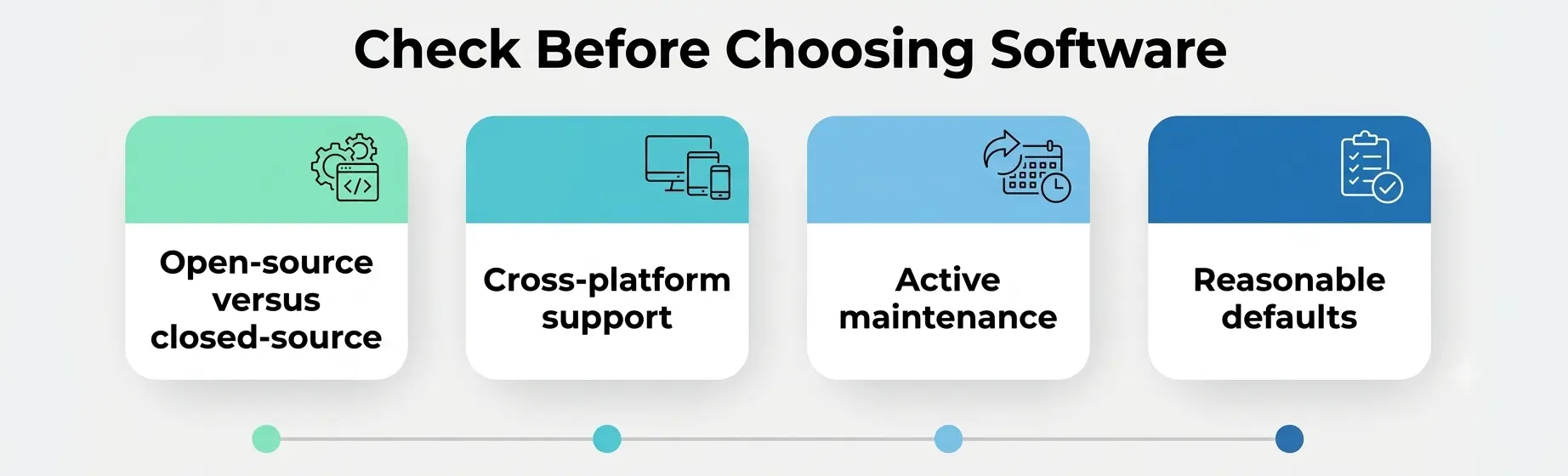
- Open-source versus closed-source. Open-source tools let independent researchers inspect the underlying code for weaknesses, which is a meaningful trust signal if you’re comparing options with similar features.
- Cross-platform support. If you switch between a personal laptop, a university-issued device, and a phone, pick something that works consistently across all three rather than juggling different apps with different habits.
- Active maintenance. Cryptographic software that hasn’t been updated in years is a red flag—vulnerabilities get discovered over time, and unmaintained tools simply don’t get patched.
- Reasonable defaults. The best tools protect you even if you never touch the advanced settings. If something requires deep configuration just to be safe, it’s easy to end up with a setup that looks secure but isn’t.
None of this needs to be complicated. For most students, the built-in options already sitting on your laptop cover the vast majority of what you’ll ever actually need—everything past that is really just habit and consistency.
Common Mistakes That Undermine File Encryption
Even well-intentioned setups fail for predictable reasons:
- Weak passwords guarding strong algorithms. AES-256 doesn’t matter if the password is “password123.” This is the most common gap in otherwise decent password protection.
- No backup of the key or passphrase. Lost keys mean permanently lost data—there’s no “forgot password” button for a properly protected file.
- Assuming one step covers everything. Locking a file protects data at rest, not necessarily data in transit unless the tool specifically covers both, which matters a lot once files leave your device.
- Ignoring device-level security. An unlocked phone with a protected app already open provides zero protection.
- Treating data privacy as a one-time setup. It needs revisiting as you add new devices, accounts, and storage services—it isn’t a box you check once and forget.
What’s Next: Encryption Beyond 2026
The next real shift isn’t about AES or RSA getting stronger—it’s about what comes after them. Quantum computers, once they’re powerful enough, could theoretically break the asymmetric encryption methods the internet has relied on for decades.
That’s why the U.S. National Institute of Standards and Technology has already finalized new post-quantum cryptography standards designed to resist that future threat, with organizations now encouraged to begin migrating sensitive systems ahead of time rather than waiting until it becomes urgent.
For students, this doesn’t mean panic—current encryption tools remain secure for everyday needs for the foreseeable future. It does mean the field keeps moving, and the habit of paying attention to how your data is protected will matter more, not less, as these standards roll out across the next decade. Good habits around protecting your keys now will carry over directly once the underlying algorithms eventually change.
Final Thoughts
File encryption isn’t a niche IT skill anymore—it’s closer to locking your front door. You don’t think about it as advanced security; you think about it as something you just do. Between locking your own files properly, sharing others securely, keeping your keys organized, and using genuinely strong passwords, most students can close the biggest gaps in an afternoon, and the payoff in data protection and data privacy lasts for years.
A Personal Note
I’ll be honest—I didn’t take any of this seriously until a friend in my program lost a laptop with two years of unfinished research on it, unencrypted, with no backup. Nothing malicious happened to that data as far as we know, but the not-knowing was worse than if it had just been stolen outright. It took me twenty minutes to turn on full-disk encryption after that. I wish I’d done it the day I got the laptop, not two years in. If this guide gets even one person to take file encryption seriously today instead of “eventually,” it did its job.