

Power BI services transform your data into clear, interactive, and visually appealing insights. These could be a collection of cloud-based and hybrid on-premises data warehouses, or they could just be an Excel spreadsheet. When you use Power BI, connecting to data sources is simple. You can visualize and comprehend what’s important, and you can share it with anybody you choose.
A complete guide covering Power BI Service vs Desktop key differences, features, use cases, best practices, and how to choose the right Power BI tool for your data analytics and business intelligence needs in 2026
Starting with these two foundational components, Power BI is made up of several interconnected parts:
Power BI Desktop is a desktop application for Windows.
The Power BI service is an online SaaS offering.
Beyond Desktop and Service, the full Microsoft Power BI ecosystem also includes Power BI Mobile (iOS and Android app for on-the-go reporting), Power BI Embedded (for embedding reports in custom applications), Power BI Report Server (for on-premises deployments), and Power BI Premium (enterprise-grade capacity and advanced features)
Power BI Desktop
You may download and install Power BI Desktop, a feature-rich data analysis and report generation tool, for free on your work computer. You can connect, transform, visualize, and analyze your data on your machine using a Power BI desktop. Power BI Desktop is available as a free download from the Microsoft website or via the Microsoft Store, making it the ideal starting point for data analysts, business intelligence developers, and anyone learning Power BI for the first time.
One feature of Power BI Desktop is the Query Editor, which helps you link several data sources, compile them into a single data model, and create reports based on that model. Power BI Desktop connects to over 100 data sources, including SQL Server, MySQL, PostgreSQL, Oracle, Azure Synapse Analytics, SharePoint, Salesforce, Google Analytics, SAP, REST APIs, Excel, and CSV files, giving analysts enormous flexibility in consolidating data from across the enterprise.
These reports can also be readily shared with colleagues or published straight to the Power BI service. Publishing from Power BI Desktop to the Power BI Service is done with a single click, making it easy to move from local development to cloud-based collaboration and sharing without any complex export or conversion steps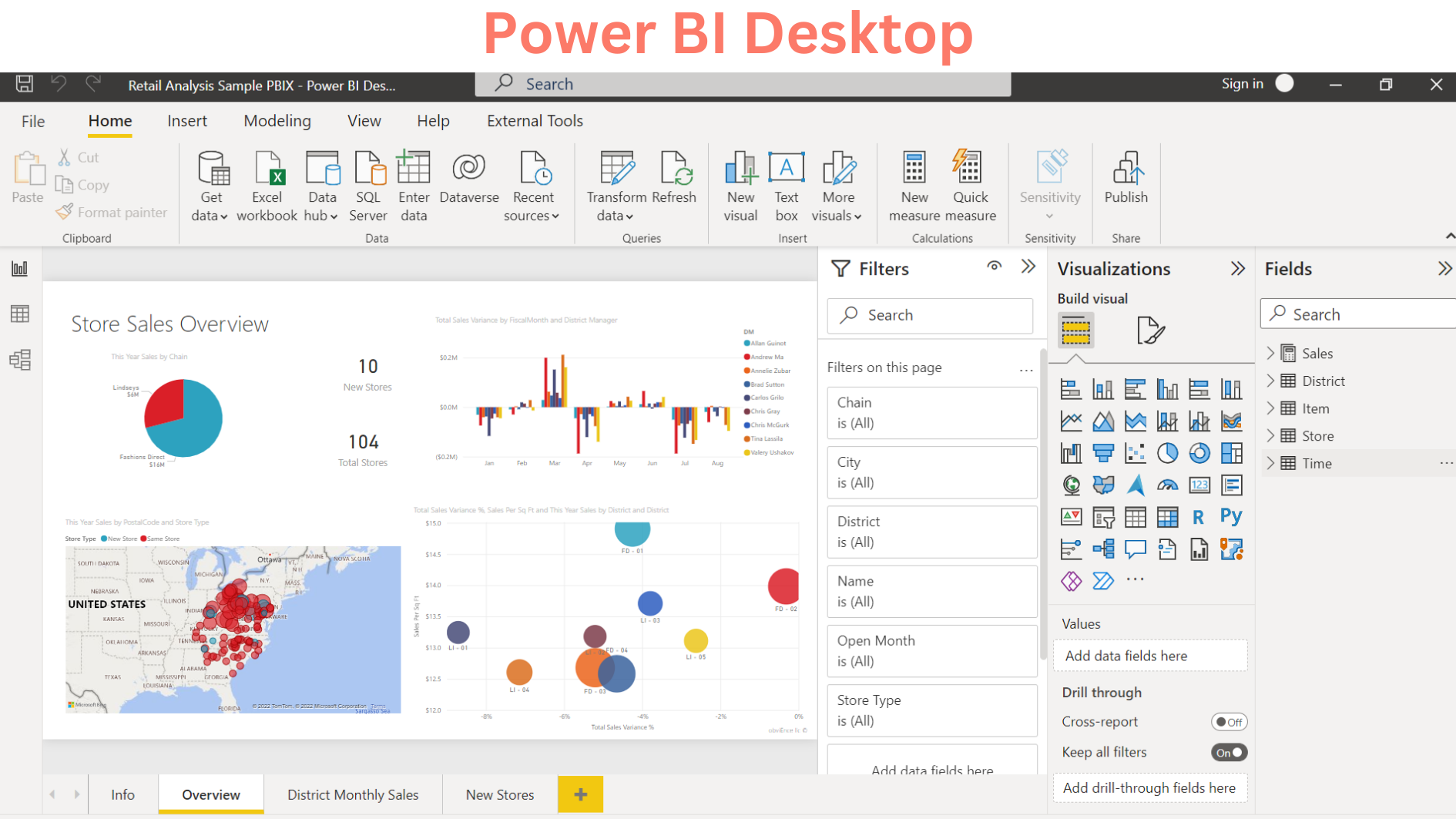
Some Common uses for Power BI Desktop:
- Establish a data connection
- After the data has been cleaned and transformed, create a data model.
- Make visualizations such as charts and graphs to give the data a visual representation.
- On one or more report pages, create reports that are a collection of images.
Build complex DAX (Data Analysis Expressions) calculations for custom measures, calculated columns, and KPIs” “Design and implement row-level security (RLS) to control data visibility for different user groups.” “Create and manage relationships between multiple tables in the data model
Create, Clean, and Transform a Data Model
With Power BI Desktop, you can use the integrated Power Query Editor to clean and transform data. You may do operations on your data with this Power Query Editor, including modifying a data type, eliminating columns, or even merging data from multiple sources. Advanced Power Query Editor capabilities include appending and merging queries; unpivoting columns for better data structure; creating custom columns using M language (Power Query Formula Language); removing duplicates; handling null values; and splitting columns, all without writing a single line of SQL code.
Best practice tip: Always perform data cleaning and transformation in Power Query Editor rather than in the data model this ensures cleaner data flows, better performance, and easier maintenance when source data structures change
Power BI Service
- The Power BI Service, also known as Power BI Online, is a software as a service (SaaS) that consists of a number of applications, connectors, and software services that work together to help you create, share, and use business data in a way that is most beneficial to your company and to you personally. Power BI Service is accessible at app.powerbi.com from any web browser, making it platform-independent, unlike Power BI Desktop, which is limited to Windows machines. This makes it the preferred tool for Mac users, Linux users, and remote teams who need to access reports and dashboards from any device. Although data modelling is restricted, this cloud-based Power BI tool facilitates teamwork, report modification, and connection to data sources for enterprises and teams.
- With the Power BI service, you may use dashboards to stay abreast of company developments. Dashboards display tiles that you can click to open reports for more investigation.
Collaborating
Within the Power BI service, the workspace is where you work together to create dashboards that aggregate your data and distribute it throughout your group or company. You can publish your datasets and allow others to make reports using them if you’d like, even if visitors can only read reports and cannot edit them. Power BI Service workspaces support role-based access with four permission levels: Admin (full control), Member (can edit and publish), Contributor (can edit but not publish), and Viewer (read-only access), giving organizations fine-grained control over who can do what within each project workspace. Power BI Service also supports organizational apps, curated collections of dashboards and reports that can be published to large groups of users across the organization with a single deployment, eliminating the need to share content individually with hundreds of employees
When creating reports for business intelligence strategies, Power BI report designers frequently use BI Desktop and the BI service to create and distribute these reports. A typical Power BI workflow in enterprise organizations follows this pattern: Data Engineers prepare and load data. → Data Analysts build models and reports in Power BI Desktop → Reports are published to Power BI Service → Business users consume dashboards and reports via browser or Power BI Mobile app
Features of Power BI Desktop & Service
Here are the differences between the features of the Power BI Desktop & Service:
Understanding which features belong to Desktop versus Service is one of the most commonly tested topics in the Microsoft PL-300 Power BI Data Analyst certification exam — making this comparison essential knowledge for anyone pursuing a career in data analytics.
|
Power BI Desktop |
Power BI Service |
|
Various Data Sources |
Few Sources of Data |
| Capabilities for Transformation | Dashboards |
|
Modelling and Shaping |
Workspaces & Applications |
| Actions | Exchanges |
| Determined Rows |
Dataflow Generation |
| Python |
Reports with Pages |
| Topics |
RLS Administration |
|
RLS Production |
Gateway Relationships |
Power BI Desktop is the creation tool where data is connected, modelled, and visualized. Power BI Service is the distribution and collaboration tool where reports are shared, scheduled, monitored, and consumed at scale. Most professional Power BI developers use both tools together as part of their daily workflow.
Combined Features of Power BI Service & Power BI Desktop
- Reports
- Illustrations
- Increased Safety
- Filtration
- Bookmarks
- Q&A
- R Illustrations
Conditional formatting (highlight data based on rules and thresholds) “Custom visuals from AppSource (hundreds of community and certified visuals)” “Export to PDF, PowerPoint, and Excel” “Cross-report drill-through for navigating between related reports
Conclusion
The best method to take advantage of both platforms is to produce Power BI reports using Power BI Desktop and then collaborate and share the reports using the Power BI service. For individual analysts and small teams just starting with Power BI, begin with Power BI Desktop for report development and use the free tier of Power BI Service for basic sharing. As organizational needs grow, upgrade to Power BI Pro (per-user licensing) or Power BI Premium (capacity-based licensing) to unlock advanced collaboration, larger dataset limits, and enterprise-grade features.
Using the Services or Desktop versions of Power BI tools is a terrific method to enhance your data reporting. Additionally, you can use certain BI systems that are equipped to have your marketing data organized properly, placed into pre-made templates, and provided with easily customizable AI insights.
Quick Power BI Desktop vs. Service—Decision Checklist
- Need to connect and transform raw data → Use Power BI Desktop
- Need to build complex DAX measures and calculations → Use Power BI Desktop
- Need to design and publish reports → Use Power BI Desktop
- Need to share reports with your team or organization → Use Power BI Service
- Need to set up automatic data refresh schedules → Use Power BI Service
- Need to create dashboards aggregating multiple reports → Use Power BI Service
- Need to manage workspace permissions and user access → Use Power BI Service
- Need to access reports on mobile or non-Windows devices → Use Power BI Service
- Need to collaborate with colleagues on report development → Use both together
- Preparing for PL-300 Power BI Data Analyst certification → Master both tools