

Cloud spending isn’t slowing down. Flexera’s 2026 State of the Cloud report found that 76% of large enterprises now spend more than $5 million a month on public cloud, and almost all of that spend sits on top of one thing: raw compute capacity.
Amazon EC2 is the service most of that compute capacity actually runs on, and it’s usually the very first AWS service a new student, developer, or IT professional touches. That’s exactly why this Amazon EC2 Tutorial for Beginners exists—to walk you through what EC2 is, how it works, and how to launch your first instance without getting lost in jargon along the way.
If you’ve opened the AWS EC2 console once, clicked around for ten minutes, and closed the tab feeling more confused than when you started, you’re not alone. EC2 exposes a lot of options at once—instance families, storage types, networking, and pricing models—and none of it is explained clearly the first time you see it.
This guide fixes that by walking through everything in the order a beginner actually needs it, not the order AWS’s documentation presents it.
What Is Amazon EC2, and Why Should Beginners Care?
Amazon Elastic Compute Cloud, or EC2, is a web service that gives you resizable virtual servers in the cloud. Instead of buying a physical machine and maintaining hardware yourself, you rent a virtual server—called an instance—for as long as you need it and pay only for the time it runs. You can launch an instance in minutes, resize it later if your workload grows, and shut it down the moment you’re done.
For anyone starting out, EC2 is worth learning first because almost everything else in AWS eventually connects back to it. Databases, web applications, container platforms, and even machine learning workloads run on EC2 instances somewhere underneath the managed service layer. Understanding how EC2 works gives you a foundation that makes every other AWS service easier to reason about later.
Why This Amazon EC2 Tutorial for Beginners Matters in 2026?
Cloud computing isn’t a niche skill anymore—it’s closer to a baseline expectation for IT and software roles. Employers assume candidates can at least navigate the AWS EC2 console, launch a basic instance, and understand why a workload is billed the way it is.
A tutorial that only explains theory without walking through the console leaves that gap wide open, which is why this Amazon EC2 Tutorial for Beginners keeps coming back to hands-on steps rather than abstract explanations.
It also matters because AWS keeps changing the details underneath the service. Instance families get added, older ones get deprecated, and pricing options shift year to year. A beginner who learns EC2 from outdated material ends up confused the moment reality doesn’t match what they read, so everything in this guide reflects how EC2 actually behaves in 2026.
Reference Blog: Launching Amazon EC2 Instance with Amazon Machine Images (AMI)
Understanding EC2 Instance Types
Once you’re inside EC2, the first real decision you’ll face is which instance to launch, and that means understanding EC2 instance types before you touch anything else. AWS groups instances into families based on the balance of compute, memory, storage, and networking they provide, and picking the wrong one is one of the most common beginner mistakes—either overpaying for capacity you don’t need or under-provisioning and watching an application struggle.
According to AWS’s own documentation, the main families beginners should know are
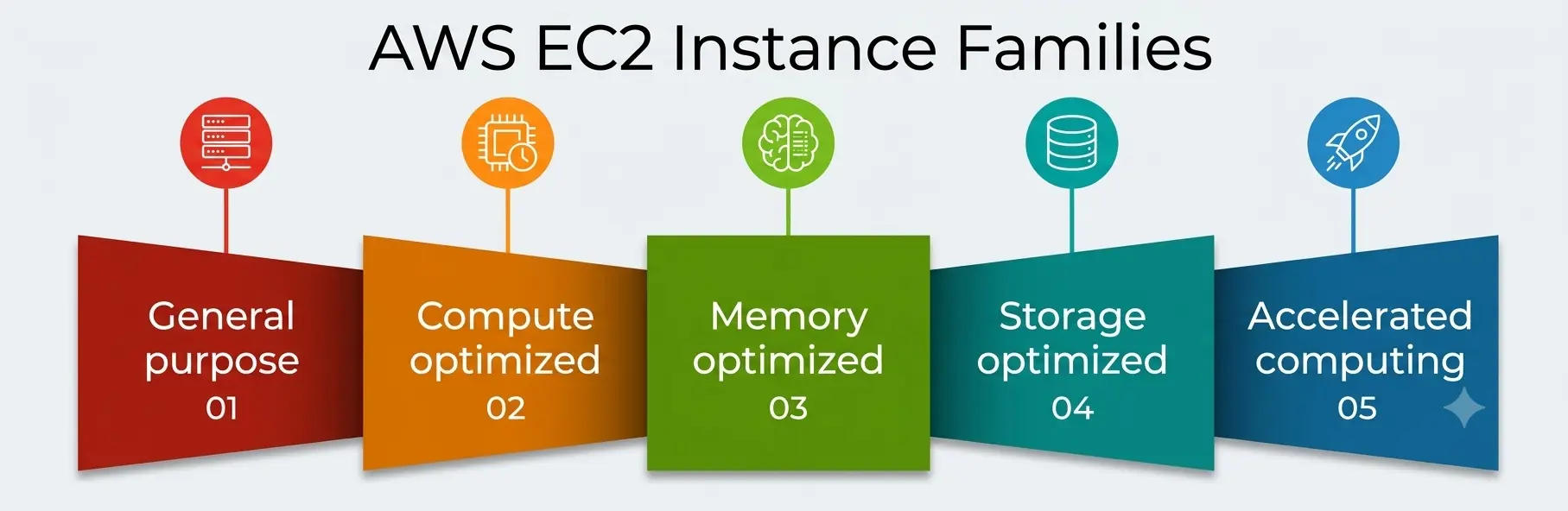
- General purpose—a balanced mix of compute, memory, and networking, suitable for small web apps or test environments.
- Compute optimized—built for CPU-bound applications like batch processing or gaming servers.
- Memory optimized—designed for workloads that process large datasets in memory, like real-time analytics.
- Storage optimized—tuned for high, low-latency I/O, useful for data warehousing.
- Accelerated computing—uses GPU or other hardware accelerators, common for machine learning training.
For a first project, general-purpose EC2 instance types—usually the T or M family—are almost always the right starting point, flexible and inexpensive enough that a beginner won’t rack up a large bill from an oversized machine.
Setting Up Your AWS Account and Opening the AWS EC2 Console
Before launching anything, you need an AWS account, which takes a few minutes to create with an email address and a payment method (required even if you plan to stay within free usage). Once your account is active, sign in and search for “EC2” in the top search bar—that opens the EC2 dashboard you’ll use for nearly every step in this tutorial.
That dashboard can look cluttered at first glance, but the layout follows a logic once you know what to look for. The left-hand navigation panel groups everything by function: Instances, Images, Elastic Block Store, Security Groups, and Key Pairs are the sections you’ll use constantly as a beginner. Everything else can wait until you’re comfortable with these basics.
How to Launch Your First EC2 Instance: A Simple Guide
This is actually what most beginners are here for, so here’s the process broken down into easy-to-follow steps:
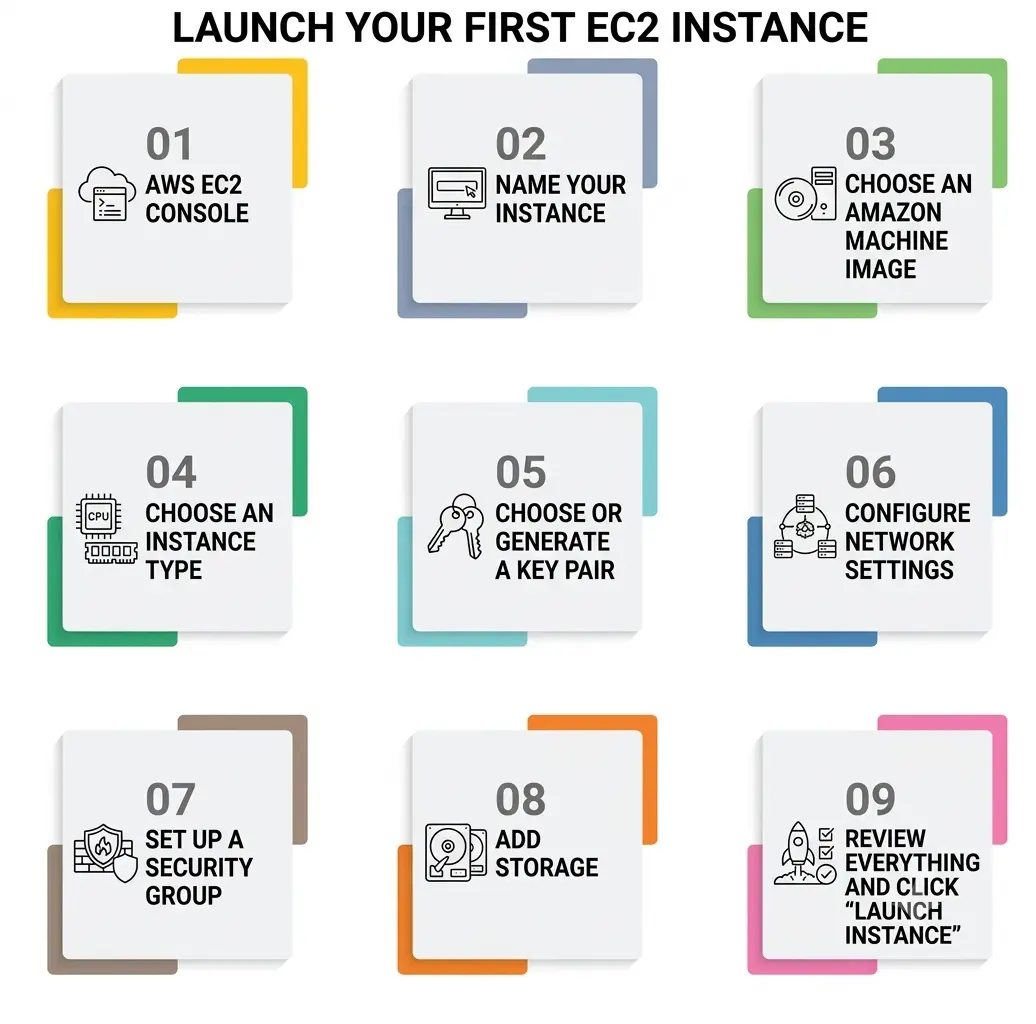
- From the dashboard of the AWS EC2 console, click “Launch Instance.”
- Name your instance something descriptive like “my-first-server.”
- Choose an Amazon Machine Image (AMI)—the OS template your instance will boot from. Both Amazon Linux and Ubuntu are popular choices for beginners, and both are free tier eligible.
- Choose an instance type. You want to experiment but keep costs low. Pick one of the available EC2 instance types that is general purpose and small.
- Choose or generate a key pair. This is the cryptographic key that you will use to connect to your instance; download it now, because AWS will not let you retrieve it again.
- Configure network settings. The default VPC and subnet work fine for a first instance; just make sure “Auto-assign public IP” is enabled.
- Set up a security group, which acts as a firewall. Allow SSH (port 22) if you’re using Linux, and add HTTP or HTTPS only if you’re hosting a web application.
- Add storage. This is where Amazon EBS comes in—the default volume size is usually enough for a test instance.
- Review everything and click “Launch Instance.” Within a minute or two, your status will change to “running.”
Once it’s running, you can connect to it directly from the console using the built-in browser-based connection option or through SSH from your own terminal using the key pair you downloaded earlier.
Amazon EBS: Attaching Storage to Your Instance
Every EC2 instance needs storage, and that’s handled by Amazon EBS—Amazon Elastic Block Store. Think of it as a virtual hard drive that attaches to your instance and persists independently of it, meaning your data survives even if the instance itself is stopped or terminated (as long as you didn’t set the volume to delete on termination).
There are several Amazon EBS volume types, and picking the right one depends on what your workload needs. Per AWS’s EBS documentation, gp3 is the current general-purpose SSD option and the right default for beginner projects—it handles boot volumes and small databases well. If you eventually need sustained high IOPS for a demanding database, io2 is built for that. For infrequently accessed data where cost matters more than speed, st1 and sc1 (throughput-optimized and cold HDD) are worth knowing about.
Security Groups and Key Pairs: Keeping Your Instance Safe
A common beginner mistake is opening every port “just in case” to avoid connection errors. Resist that urge. A security group should only allow the specific traffic your application actually needs—SSH for management and HTTP/HTTPS only if you’re running a public-facing web server. Leaving unnecessary ports open is one of the fastest ways a beginner’s test instance gets compromised.
Guard your key pair file the same way you’d guard a password. Anyone who has it can connect to your instance, and AWS has no way to recover a lost key—misplace it, and your only option is creating a new instance with a new key pair.
EC2 Free Tier: What Beginners Actually Get for Free in 2026
One detail that trips up people following an older Amazon EC2 Tutorial for Beginners online is that the EC2 free tier changed in 2026. AWS moved away from the old model of 750 free hours of a small instance every month for a full year.
Under the current structure, new accounts get up to $200 in AWS credits—$100 immediately at sign-up and up to $100 more as you explore additional services—usable within six months of account creation or until the credits run out, whichever comes first, alongside a separate set of “always free” services with their own monthly limits.
Practically, that means the EC2 free tier still lets you experiment for free, but the clock and dollar amount work differently than tutorials written before 2026 describe. Keep an eye on your AWS Billing dashboard while you’re learning, since the free tier is credit-based rather than open-ended now.
Setting a billing alarm in the first ten minutes after account creation is one of the more useful habits a beginner can build, precisely because the EC2 free tier no longer works the way older guides assume.
AWS EC2 Pricing: Understanding What You’ll Actually Pay
AWS EC2 pricing confuses a lot of newcomers because there isn’t one single price—there are several purchasing models, and choosing the right one matters once you move past free tier experimentation. According to AWS’s own EC2 pricing page, the main options are
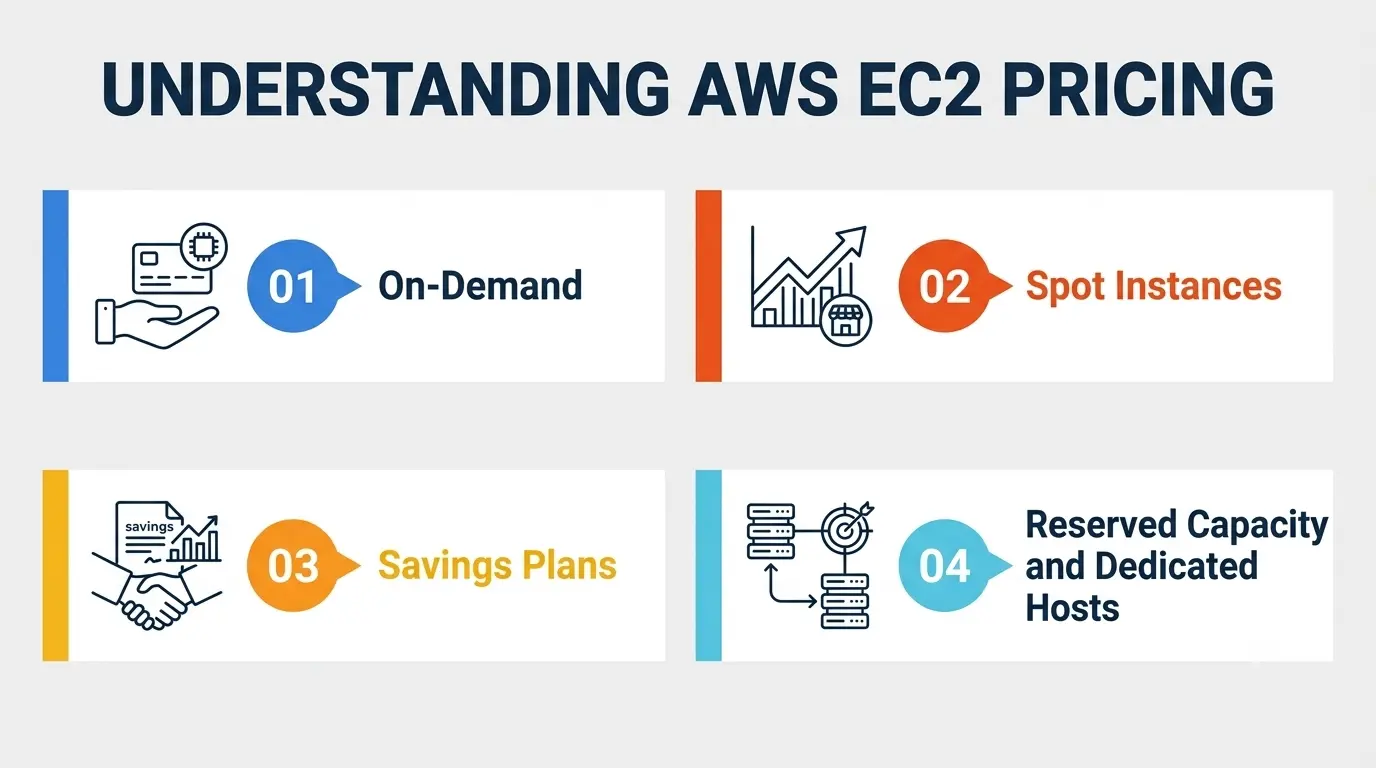
- On-Demand—pay by the hour or second with no upfront commitment. Nearly every beginner starts here.
- Savings Plans—it commits to consistent usage in exchange for savings of up to 72% compared to on-demand pricing.
- Spot Instances—it uses AWS’s spare capacity at discounts of up to 90%, ideal for flexible, interruption-tolerant workloads.
- Reserved Capacity and Dedicated Hosts—the longer-term commitments for production workloads with steady demand.
For anyone still working through the fundamentals, On-Demand is almost always the right choice — understanding AWS EC2 pricing deeply enough to benefit from Savings Plans or Spot Instances comes later, once you know your usage patterns well enough to commit to them.
Common Mistakes Beginners Make with EC2
A few patterns show up again and again in any Amazon EC2 Tutorial for Beginners:
- Forgetting to stop or terminate unused instances. A running instance bills by the hour or second regardless of whether you’re actually using it.
- Oversizing the first instance. Picking one of the larger EC2 instance types “to be safe” burns through free tier credit far faster than necessary.
- Ignoring security groups. Leaving broad access open is a common way test instances get compromised within days of launch.
- Losing the key pair file. Without it, reconnecting to a running instance becomes far more complicated than it should be.
- Not setting a billing alarm. Since the free tier is now credit-based, unexpected usage can quietly eat through it faster than a beginner expects.
EC2 Instance Families at a Glance
Here’s a quick-reference table worth bookmarking while you work through this Amazon EC2 Tutorial for Beginners:
|
Instance Family |
Best For |
Example Use Case |
|
General Purpose (T, M) |
Balanced compute, memory, and networking | Small web apps, test environments, learning projects |
| Compute Optimized (C) | High-performance processors, CPU-bound tasks |
Batch processing, gaming servers |
|
Memory Optimized (R, X) |
Large in-memory datasets | Real-time analytics, in-memory databases |
| Storage Optimized (I, D) | High, low-latency I/O |
Data warehousing, large transactional systems |
|
Accelerated Computing (P, G) |
GPU or hardware acceleration |
Machine learning training, graphics rendering |
What to Learn Next
Finishing this Amazon EC2 Tutorial for Beginners is a genuine milestone, but EC2 alone won’t take you far without the services around it. A natural next step is learning how instances fit inside a VPC, how load balancers distribute traffic across multiple instances, and how Auto Scaling groups adjust capacity automatically.
From there, most learners move toward Amazon RDS for managed databases and IAM for controlling who can access what — both of which build directly on the fundamentals covered here.
A Personal Note
I still remember how overwhelming the AWS EC2 console looked the first time I opened it — a wall of settings with no obvious way to tell which choice actually mattered. What changed things wasn’t reading more documentation; it was launching a small, disposable instance and breaking something on purpose.
That’s really the fastest way through any Amazon EC2 Tutorial for Beginners: read enough to understand what you’re looking at, then let a real, low-stakes mistake teach you more in ten minutes than another article would in an hour.
Keep your first few instances small, watch your billing dashboard, and don’t be afraid to terminate something and start over. That’s how almost everyone actually learns this service.